 DuoShell
 Pair for Mac
A free menu-bar app that puts your iPhone's key on every server your Mac can already reach. Scan one code and every server is ready for Face ID sign-in.
Version 1.0 · macOS 13 Ventura or later · Apple silicon and Intel · Signed with our Developer ID and notarized by Apple
Install
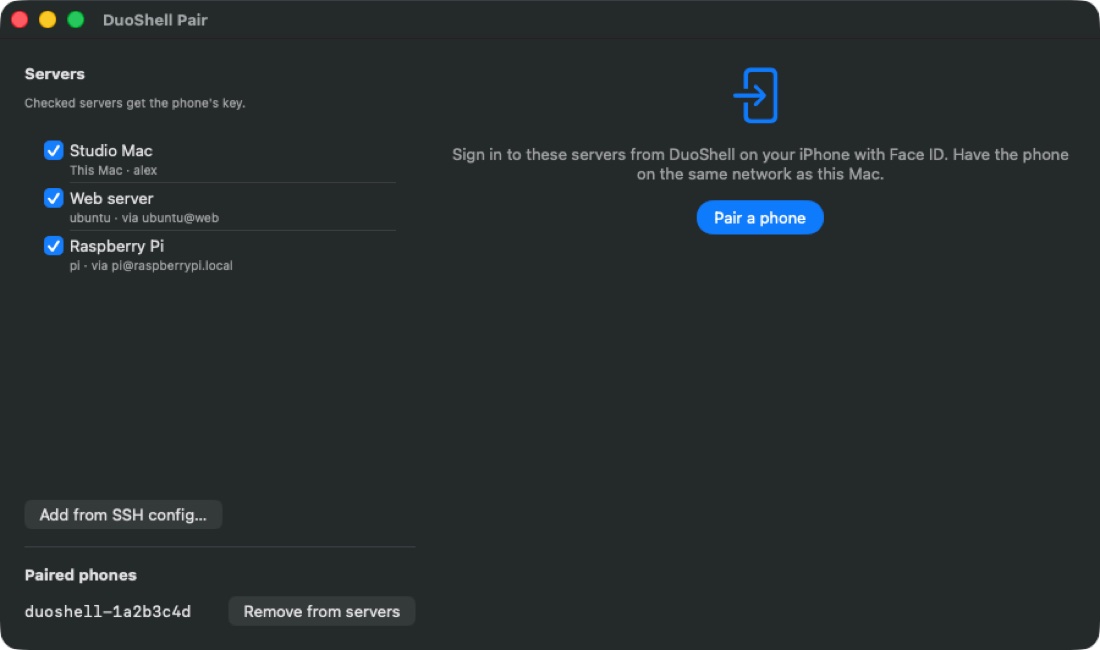
- Download and open the zip. Drag DuoShell Pair to your Applications folder.
- Open it. It lives in the menu bar (look for the QR-code icon) and opens its window right away.
- Your Mac appears in the server list. Click Add from SSH config… to add any other server you already reach with
ssh.
Pair your phone
- Check the servers you want, then click Pair a phone.
- In DuoShell on your iPhone or iPad, tap the QR button and scan the code. Keep both on the same network.
- Approve any 1Password prompts on the Mac. Each server shows a ✓ when your phone's key has been added.
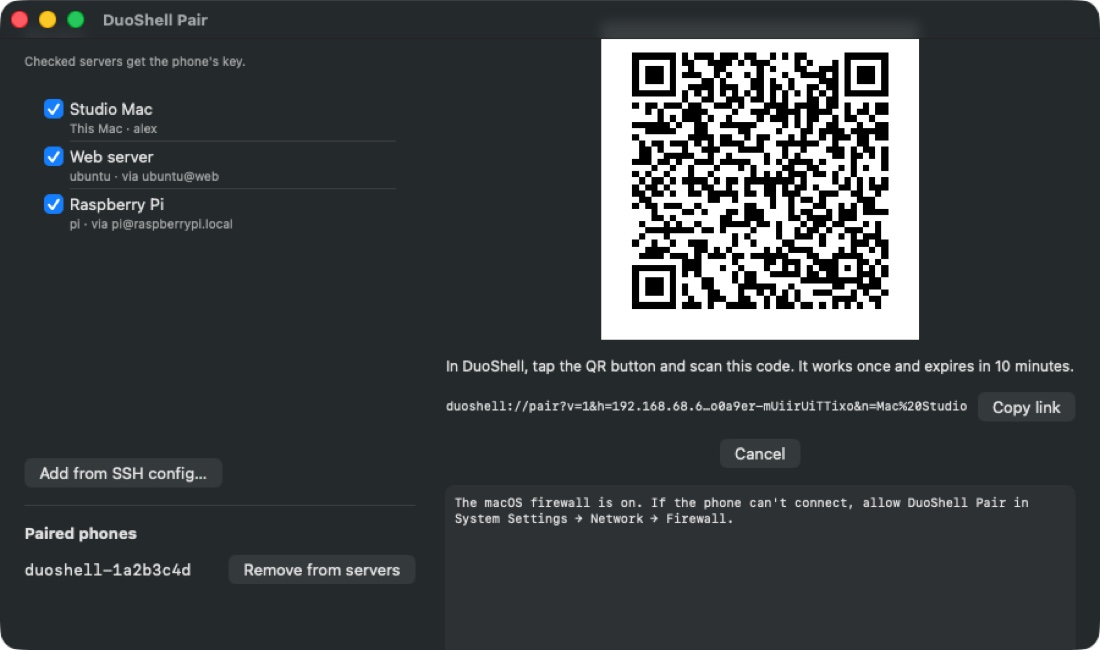
The code works once and expires in 10 minutes. To remove a phone later, click Remove from servers next to it under Paired phones.
Good to know
- Your Mac must already sign in to the server. DuoShell Pair uses the same access as
sshin Terminal, including keys in 1Password's SSH agent. - "This Mac doesn't trust the server yet": connect once from Terminal (
ssh you@server) and accept the fingerprint, then pair again. - "Needs sudo": the phone would sign in as a different account than your Mac uses. Add the key line DuoShell Pair shows to that account yourself.
- Firewall: if your phone can't reach the Mac while pairing, allow DuoShell Pair in System Settings → Network → Firewall.
- Why not the Mac App Store? Its sandbox doesn't allow apps to run
sshor read your SSH settings, which is the whole job.
DuoShell Pair 1.0 (zip, 356 KB) · SHA-256 5e410e6421db452ebe3d3696d2cf599ffc3db142858c6b64a44fe313e30dbea1